
To have the scanner scan to desired location, correct orientation, with minimal invasion to your current work, on your icon tray (it may be hidden), right click on the ScanSnap icon, (make sure Show Scanning Results is unchecked) and choose Scan Button Settings.
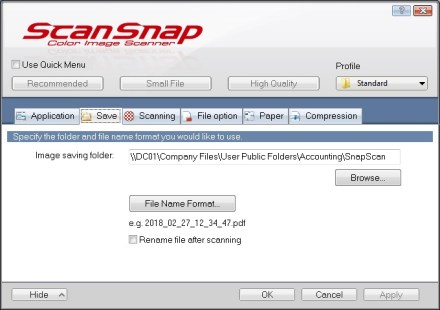
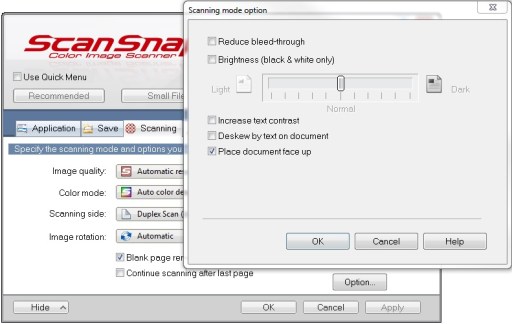
Adjust settings to match pictures:
(May need to click on Detail to see options.)
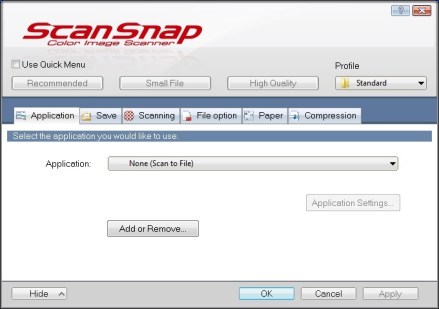
Navigate to desired save location (location chosen below applies only to accounting).

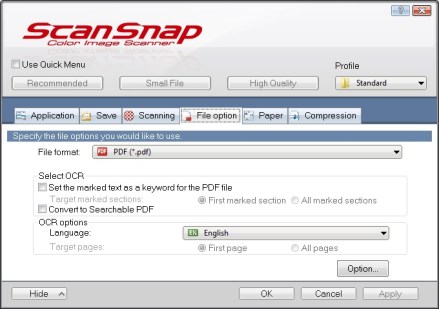
Additionally, click on ‘Options’ for the following:
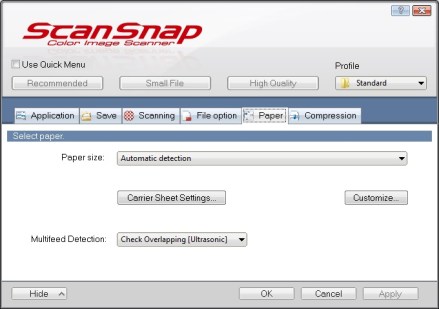

Right click on the ScanSnap icon again, select Profile Management, and select Standard.
Right click on the ScanSnap icon again, select Preferences, and match following pictures:
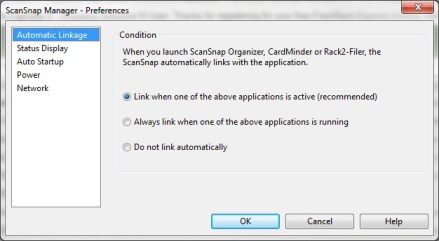

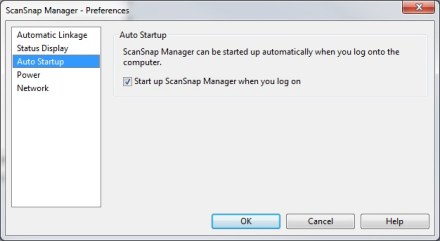
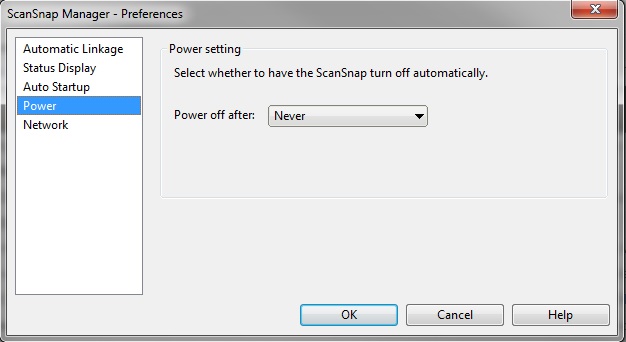

Save and close out. You should have it set to work seamlessly!
 Good's Millwork SOPs